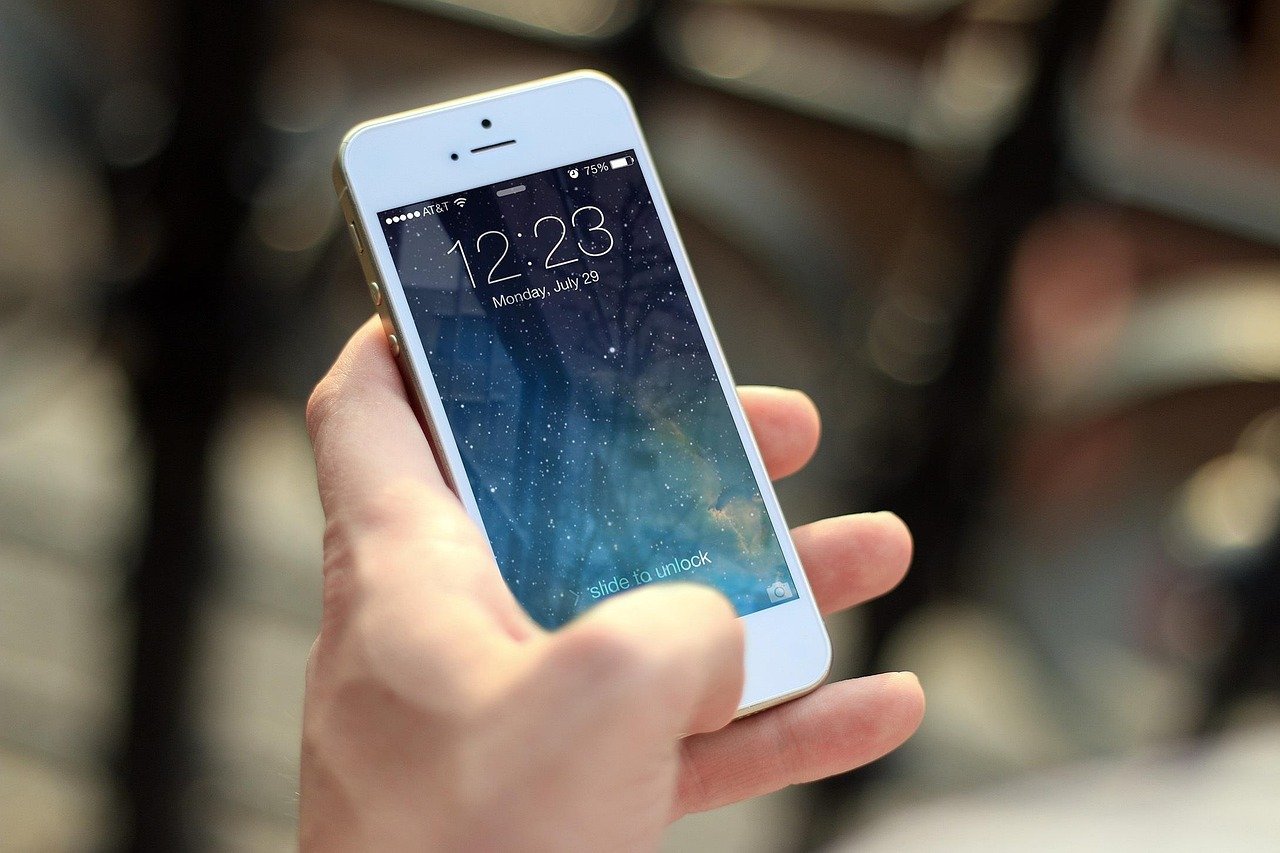

Every iPhone user knows that there’s more to Apple’s flagship device than just its sleek design and premium performance. With countless hidden features, the iPhone can elevate your mobile experience significantly. This article unveils secret iPhone tips that you should know to maximize your device’s potential. Whether you are a novice or a seasoned user, these little-known functionalities can enhance your productivity, improve your security, and refine your everyday interactions. Keep reading to discover how these hidden gems can transform your iPhone experience!
Unlock Advanced Settings with Back Tap Feature
The Back Tap feature is one of the most innovative settings hidden in the iPhone. Introduced in iOS 14, this feature allows you to execute actions by tapping the back of your iPhone. To enable it, navigate to Settings > Accessibility > Touch > Back Tap. Here, you can set a double or triple tap to trigger commands such as taking a screenshot, opening certain apps, or even activating Siri. It’s an excellent way to streamline your tasks and make your device more responsive to your needs.
Organize Apps Efficiently with App Library
If you’re tired of a cluttered home screen, the App Library can be your best friend. This innovative feature, also introduced in iOS 14, automatically organizes your apps into categorized folders. You can access it by swiping past the last home screen page. Cleaner and more efficient than traditional folder systems, the App Library ensures that your most used apps are always at your fingertips. To further customize your experience, simply drag an app icon to your home screen, providing quicker access to your most beloved tools.
Utilize Hidden Camera Features for Better Photos
Your iPhone camera is packed with hidden features that can dramatically improve your photography skills. For instance, you can use the Grid feature to help align your photos with the rule of thirds. To enable it, head to Settings > Camera > toggle the Grid on. Another essential tool is the Selective Focus option that allows you to modify focus for more artistic shots. By using the Portrait mode wisely and adjusting lighting through the Natural Light filter, you’ll capture stunning pictures that rival professional photographers. Remember that lighting plays a crucial role, so explore various settings before snapping that perfect shot!
Improving Security with Face ID Settings
Many users are not aware that they can enhance their security through various settings accessible in Face ID. To access it, go to Settings > Face ID & Passcode. Here, you can add an alternate appearance for Face ID, making it easier to unlock your device under different conditions, such as changing hairstyles or wearing glasses. Additionally, you can select which apps require Face ID for access, bolstering your security even further. These adjustments can protect sensitive information and offer peace of mind in today’s digital landscape.
Widget: Small applications you can add to your home screen or Today View that provide quick information or access.
Siri Shortcuts: Customizable commands you can set for Siri to enhance your productivity.
iCloud: Apple’s cloud services where your data is stored, allowing for seamless device transitions.
Do Not Disturb: A setting that silences notifications for a focused experience, easily accessible through Control Center.
Mastering Hidden Features in Control Center
If you haven’t explored the Control Center on your iPhone, you might be missing out on some powerful shortcuts. Did you know you can customize it? You can add shortcuts to apps you use frequently, like the Home app or even the screen recording feature? Just go to Settings > Control Center > Customize Controls to tweak what you have at your fingertips. This lets you access tools rapidly without rifling through apps.

Another favorite feature is the ability to control your smart home devices straight from the Control Center. Once you have your HomeKit devices synced, just swipe down from the top right corner (or up from the bottom for older models), and you’ll have instant access to control lights, thermostats, and more. It’s a great way to adjust your environment with just a swipe. For more detailed settings, check out this Apple guide on HomeKit integration.
Utilizing the Back Tap Feature
One of the coolest things about recent iPhones is the Back Tap feature. It enables you to double or triple tap the back of your phone to perform tasks like launching an app, taking a screenshot, or even activating specific accessibility features. To enable this, go to Settings > Accessibility > Touch > Back Tap. From there, you can customize what those taps do, making your phone feel even more personalized.
Imagine taking a screenshot without fumbling for the buttons or accessing the app switcher effortlessly. Many users find this feature extremely handy for multitasking. You can read more about it in this Apple support page. So, go ahead, give it a try and discover how this simple feature can enhance your iPhone experience!
Frequently Asked Questions
1. How do I find my iPhone’s hidden features?
Explore the “Settings” app on your iPhone to unlock a range of hidden features. Apple also provides guides on their support page that may point you to these valuable functionalities.
2. Can I customize Face ID settings?
Yes, you can customize Face ID settings by adding an alternate appearance and selecting specific apps that require Face ID for security.
3. What is the Back Tap feature?
The Back Tap feature is a shortcut that allows users to perform actions like taking screenshots or launching apps by tapping the back of the device.
4. How does the App Library work?
The App Library automatically organizes your installed applications into folders, streamlining the way you access your apps from each home-screen page.
5. What photography tips should I follow with my iPhone?
Utilize the Grid feature, experiment with various lighting options, and utilize Portrait mode to capture better quality photos and explore your artistic side.
Conclusion
In conclusion, your iPhone is equipped with numerous secret tips that can significantly enhance your user experience. By utilizing features like the Back Tap, App Library, advanced Camera tools, and customizable Face ID, you can make your device work for you in myriad ways. These functionalities not only save time but also improve the overall usability of your smartphone, making it an indispensable tool in your daily life. Don’t hesitate to explore your iPhone’s capabilities—these hidden treasures await!