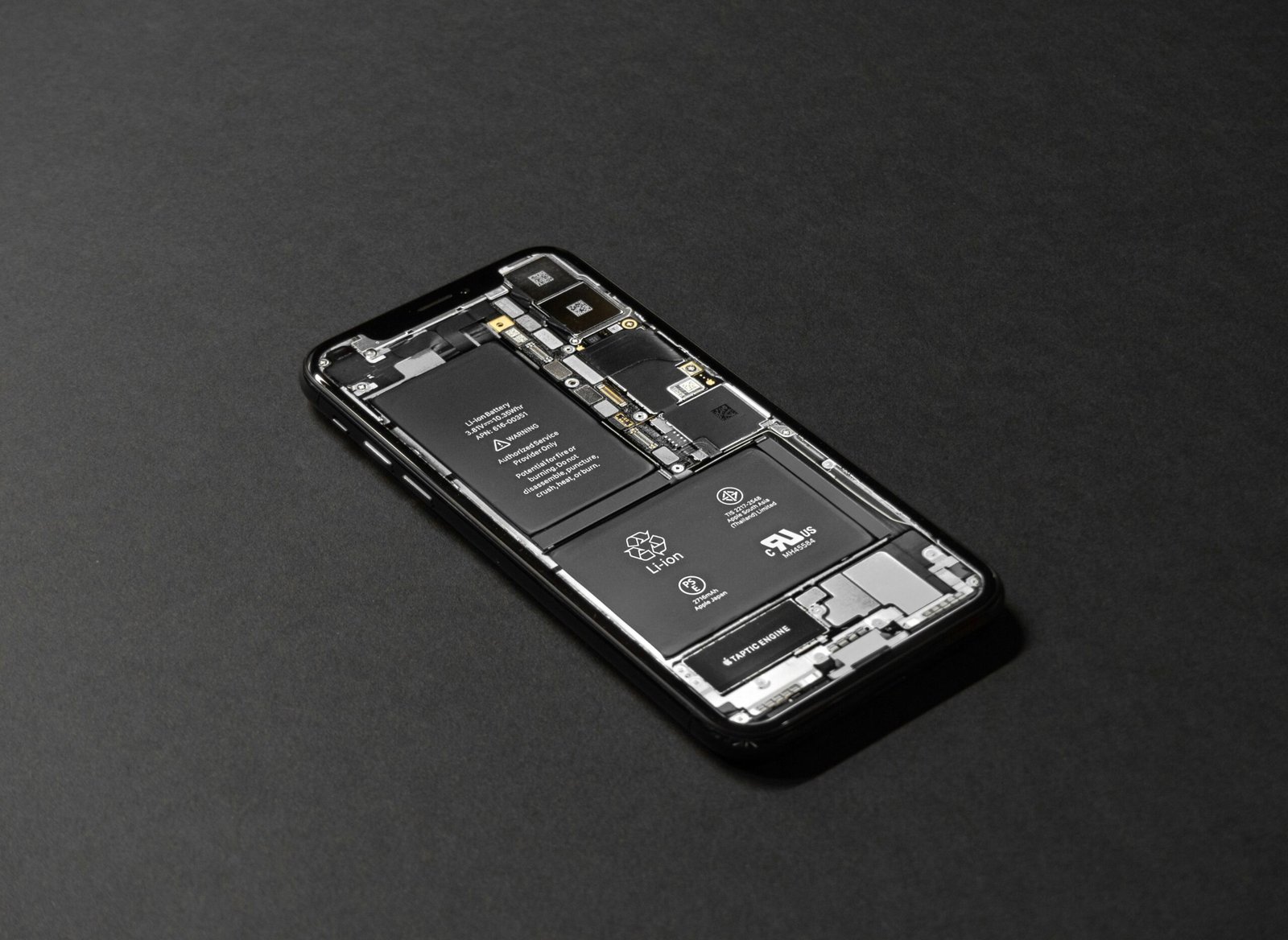

In today’s fast-paced world, keeping your devices powered up is crucial. Whether you rely on a smartphone, tablet, or laptop, learning the best tricks to save battery life can ensure you stay connected and productive. Most users find themselves needing to charge their devices frequently, often due to a simple lack of knowledge about effective battery-saving techniques. Fortunately, a few straightforward adjustments can significantly extend your device’s battery lifespan. This article outlines practical and efficient methods to help you maximize battery efficiency and longevity, giving you the freedom to use your devices without constant recharging.
Adjust Your Display Settings for Optimal Battery Usage
Your device’s display is one of the biggest battery drainers. A bright screen consumes more energy; hence adjusting your display settings is one of the most effective tricks to save battery life. Try lowering your screen brightness or enabling auto-brightness, which adjusts the brightness based on ambient lighting. Another effective technique is to decrease the screen timeout duration. By setting your screen to turn off after a short period of inactivity, you can conserve power significantly. Additionally, consider switching to dark mode on devices that support it, such as many smartphones and laptops. Dark mode uses less power, especially in OLED screens, allowing for enhanced battery longevity.
Limit Background App Activity
Many applications run in the background, consuming battery life even when not in active use. To maximize your device’s battery performance, regularly review your background app activity. On smartphones and tablets, navigate to the settings and check which apps are using the most battery. Disable background activity for non-essential apps to conserve power. In laptops, use the task manager to close resource-heavy applications. Enabling Battery Saver mode can automatically restrict background activity and notifications, which contribute to battery drainage. This simple adjustment can lead to prolonged battery life during crucial times.
Manage Connectivity Features Wisely
Remaining connected is essential, but features such as Wi-Fi, Bluetooth, and GPS can quickly deplete your battery. Turn off Wi-Fi and Bluetooth when not in use to save power—each active connection adds unnecessary load to your device’s battery. Additionally, consider disabling location services, which can persistently track your position. If specific apps do not require GPS tracking, keep location services off to enhance your device’s longevity. Airplane Mode is a useful feature when you’re in a low-signal area, as it disables all connectivity, thus preventing unnecessary battery drain. Implementing these strategies allows you to enjoy your device longer while saving energy.
Keep Your Device Updated
Updates often contain improvements that can enhance your device’s overall performance, including battery management features. Operating system developers, such as Apple and Android, regularly release updates to optimize battery life. Ensure that your device is running the latest software, as these updates often contain critical fixes for known battery drain issues. You can also explore optimizing your settings based on the most recent updates from manufacturers like Apple or Google. Routine updates not only improve performance but can also implement better energy-saving measures directly in your device’s software.
Optimize Display Settings
Your smartphone’s display is one of the biggest battery drainers. By adjusting your brightness settings, you can make a significant impact on battery life. Try to keep the brightness at a moderate level, and don’t hesitate to use the auto-brightness feature which automatically adjusts based on the surrounding light. Just imagine walking outside and your screen magically brightens without you doing a thing!
Also, consider reducing the screen timeout duration. Setting your phone to turn off the display after a short period, like 30 seconds or 1 minute, can conserve valuable battery life. There’s no reason to let the screen stay lit while it’s not in use. You might want to check out specific tutorials on how to access these settings for various devices – here!
Turn Off Unused Connectivity Features
Every time you leave Bluetooth, Wi-Fi, or mobile data on, you’re slowly draining your battery. If you’re not actively using them, it’s best to turn off these features. For instance, if you’re just at home and don’t need Wi-Fi, switch to airplane mode to stop your device from constantly searching for connections. You can easily toggle these settings from your phone’s quick settings menu.
Another useful trick is to manage your location services. Many apps track your location in the background, which consumes significant battery life. Go to your device’s location settings and restrict apps to use location only when they’re actively open. It’s a simple change that can lead to a noticeable increase in battery life. For in-depth steps on how to adjust connectivity settings on different devices, check out this handy guide at Gotta Be Mobile.
Limit Background App Activity
Background processes can run havoc on your battery life. Apps that refresh and send notifications while you’re not using them can really drain your juice. To combat this, head over to your settings and review the apps allowing background activity. You can selectively turn off background app refresh for apps that aren’t crucial, such as a game you play occasionally or a news app you rarely check. This small change can lead to real-time savings!
Additionally, consider using power-saving modes that come on your phone. These modes often restrict background app functionality altogether while maintaining essential services. You can save even more battery by scheduling these modes to turn on during certain hours, like overnight or when you’re at work. Check out more tips on limiting background activity at PCMag.
Frequently Asked Questions
1. How can I check which apps are draining my battery?
Most smartphones have built-in settings that allow you to see battery usage. In iOS, go to Settings > Battery. On Android, navigate to Settings > Battery > Battery Usage, where you can identify which apps consume the most power.
2. Does using live wallpapers affect battery life?
Yes, live wallpapers can drain your battery significantly. Static wallpapers use less power, making them a better choice for conserving battery life.
3. Is it good to keep my device plugged in all the time?
Keeping your device plugged in constantly can impact battery health over time. It is better to unplug it once fully charged and rely on regular charging cycles.
4. Will battery savers really make a difference?
Yes, battery saver modes can significantly reduce battery usage by limiting background activities, decreasing brightness, and minimizing performance. This feature is especially useful during low battery situations.
5. Can I improve my battery life with third-party apps?
While many third-party apps claim to extend battery life, they can sometimes be more resource-intensive. It’s best to manage settings and utilize built-in battery management features.
Conclusion
Improving your device’s battery life is not just about adhering to a few basic rules. It involves a combination of adjusting settings, managing applications, and staying informed about updates. By implementing these tricks to save battery life, you can enjoy a more efficient device, allowing you to make the most of your technology. Remember, a few small changes can lead to lasting benefits.